Upgrade from cncGraF 6/7, NC-EASY,
InfoCAM to cncGraF 8
In this article, we will show you step by step how you can switch from cncGraF 6/7, InfoCAM (Infotec Team) or NC-EAS(Y) (EAS GmbH) to the new cncGraF 8 version free of charge - including transferring your previous settings.
You can download the current version of cncGraF 8 from download here.
Why switch to cncGraF 8?
The new cncGraF 8 offers many new functions, improved performance, an optimised user interface and support for current controller generations.
In addition, support for older versions will be discontinued. Switching to cncGraF 8 ensures that you will continue to receive updates and technical support.
Requirements for the upgrade
At least the smc5d-p32 controller is required for the upgrade. Of course, the newer smc5d-m4 controller is also fully compatible.
From which versions can an update be made?
An upgrade to cncGraF 8 is generally possible from all older cncGraF, InfoCAM or NC-EASY versions, as long as they use the smc5d-p32 controller or higher.
That means:
- cncGraF 6 and cncGraF 7 can be updated to cncGraF 8,
- as well as all versions of InfoCAM (Infotec Team) and NC-EASY (EAS GmbH),
if you are already working with the smc5d-p32 controller or a newer controller generation.
All these programmes use the same smc5d-p32 controller and have a comparable range of functions. This makes it easy to switch to cncGraF 8 without having to recreate your machine parameters.
Tip:
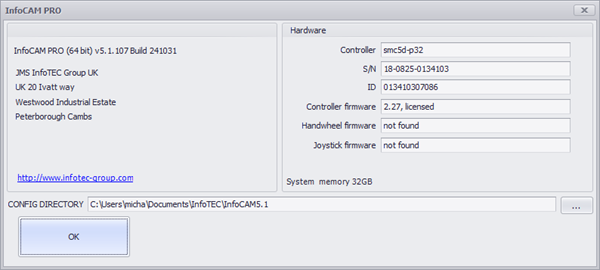
You can easily see which controller you are currently using in the „Help → About“ menu (when the controller is connected). The example image below shows Controller: smc5d-p32.
Step 1: Save system settings
Important: Before you start the upgrade, you should regularly back up your previous settings to avoid data loss. To do this in your old software, go to:
Settings → System settings → Save...
The backup file created (e.g. with the extension .sbf2, .sbf8 or config.xml) is required later to transfer the settings to cncGraF 8.
It is best to save this file on a separate data carrier or USB stick.
Step 2: Installing cncGraF 8
The installation of cncGraF 8 takes place in a new programme directory.
Your previous version (e.g. cncGraF 7, InfoCAM or NC-EASY) remains untouched.
This allows you to use both versions in parallel and test the transition at your leisure.
Note:
Depending on the software version, a firmware upgrade may be required after installation.
Step 3: Apply settings in cncGraF 8
After installation, you can simply import your previously saved settings:
Settings → System settings → Restore / Load (config.xml)...
This means that almost all parameters are automatically transferred to the new version.
Exception: When importing a config.xml file, all machine settings and dialogue settings are adopted, but not the tool store. In this case, the tool store must be set up again manually.
Step 4: Checking the transferred values
cncGraF 8 automatically adopts almost all previous settings.
Only some parameters - such as the reference sequence of the axes (machine parameter → pin assignment) or the axis sequence when approaching the zero point, parking point and measurement point - should be checked after the import and redefined if necessary.
Note:
We are continuously developing cncGraF. However, due to new functions and technical changes, it is not always possible to ensure full compatibility with all older versions (including very old cncGraF, InfoCAM or NC-EASY versions).
There is therefore no guarantee that all settings will be applied automatically.
It is strongly recommended to check all important machine parameters and position settings after the upgrade.
Conclusion: Easy change, full compatibility
The upgrade to cncGraF 8 is free, quick and guarantees future compatibility and technical support. Regardless of whether you have previously used cncGraF 7, InfoCAM or NC-EASY - the upgrade is worthwhile in any case.