cncGraF: Free G-code simulator
and CNC machine emulator
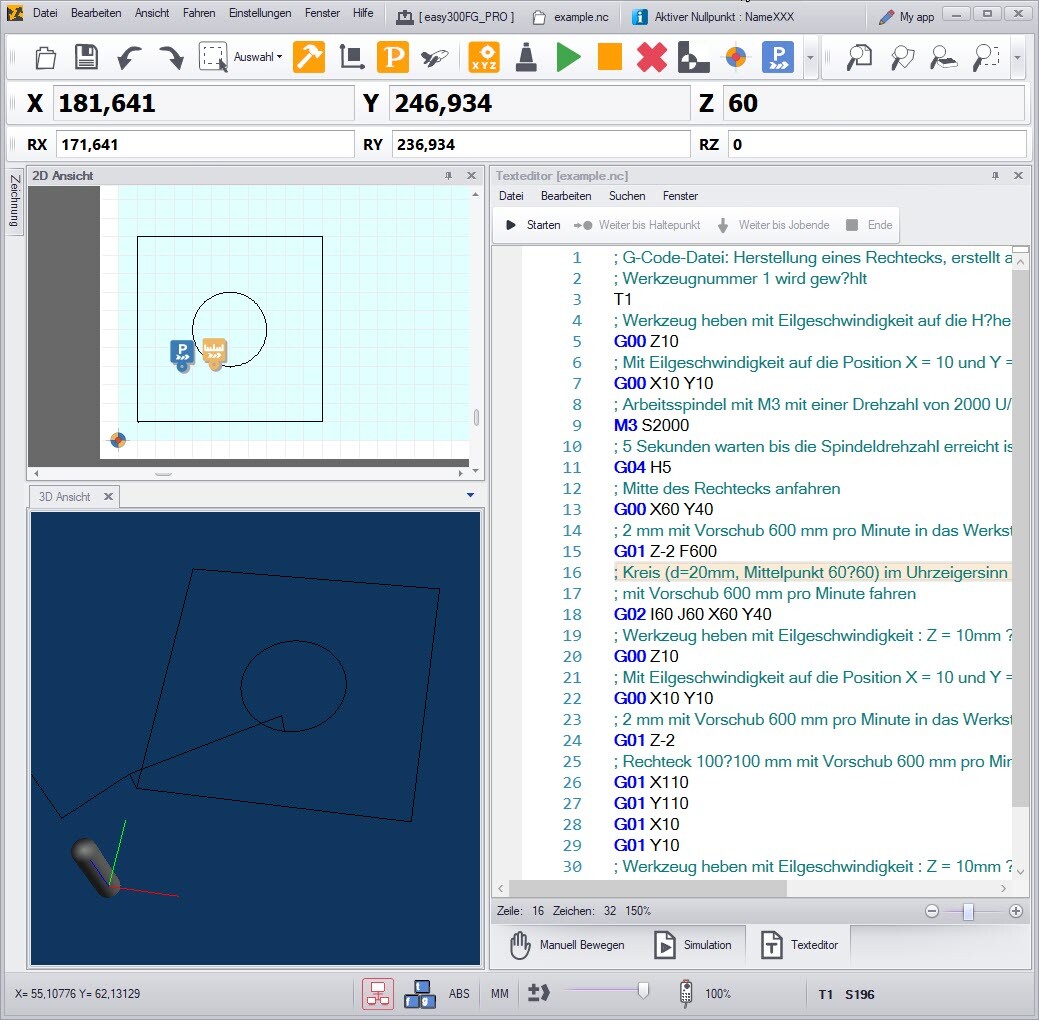
cncGraF offers an integrated G-code simulator and CNC machine emulator. Without a CNC controller cncGraF can be used free of charge as freeware and therefore ideal for the simulation of CNC processes.
This article shows how you can use cncGraF as a free G-code simulator.
cncGraF: Free G-code simulator
Installation
- downloadcncGraF is available in the download area of our website. The direct link to the download area can be found below. Registration is not required for the download and installation.
- Installation processInstallation is carried out using a simple installer. Follow the instructions of the installer to install the software.
Click here to download cncGraF free of charge.
First start
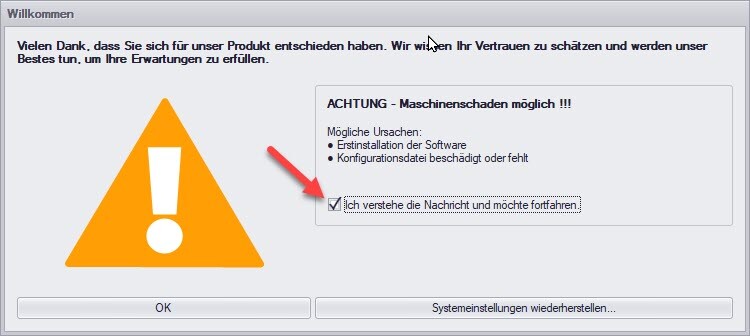
- Start: cncGraF is started by clicking on the desktop icon. The first time it is started, a welcome window appears, indicating that no machine parameters have been loaded.
- Use as a G-code simulator: When using cncGraF as a free G-code simulator, this message can simply be ignored. In this case, the text „I understand the message and would like to continue“ is ticked. The window can then be closed with ‚OK‘.
- Importing machine settings: If you want to use cncGraF with the settings of an existing CNC machine, you can import the settings.
Activate CNC machine emulator
The CNC machine emulator is activated by pressing the „Start emulator“ button in the top right-hand corner of the cncGraF main menu (see screenshot below). This starts a server on your PC that simulates the CNC controller.

cncGraF 8: Interface at a glance
The following screenshot shows the main window of cncGraF 8. The operating elements that are essential for using the G-code simulator and the CNC machine emulator are marked with numbers. These are the following controls:
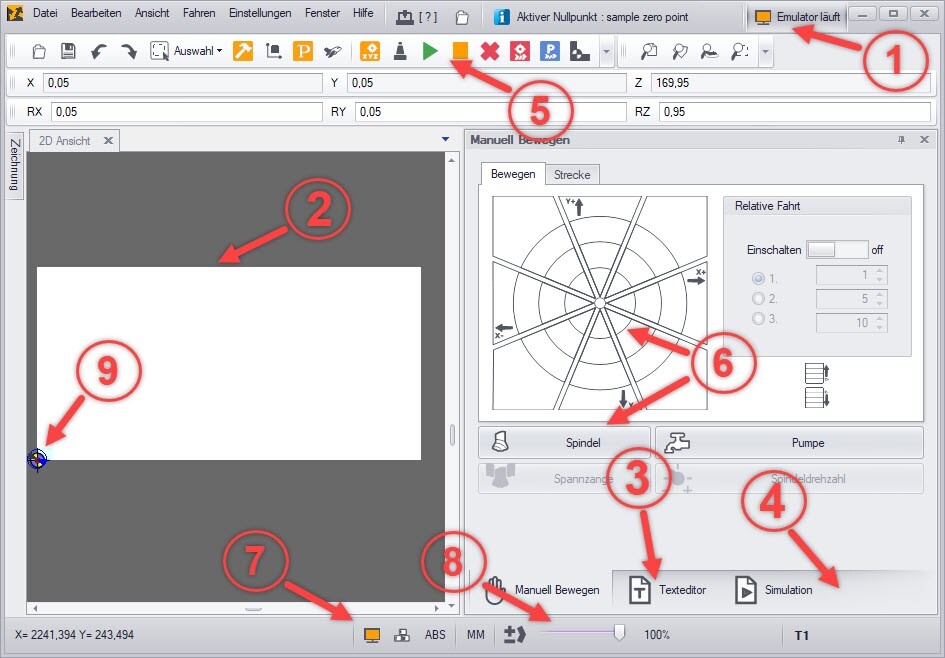
- With the „Start emulator“ button (Point 1) to activate the CNC machine emulator. The emulation is also ended with the same button. The emulator is already running in the screenshot.
- The white area (Point 2), which is located in the 2D view window, shows the machine area in X and Y as a Cartesian coordinate system. The origin of the X, Y and Z axes is located at the bottom left (Point 9). The machine area, the milling file (drawing) and the position of the CNC machine are displayed in the 2D view window.
- The integrated text editor (Point 3) is mainly used for G-code programming. A loaded G-code file can be checked here or a new G-code file can be created.
- The simulation (Point 4) offers a simple way to check the processing sequence of the commands. It visualises the processing of the G-code and is also available for 2D files such as DXF.
- By pressing the green symbol (Point 5), the milling process is started as an emulation. If the emulation was switched off and a real connection with a CNC machine was established, this action would start a real milling process.
- In the ‚Move manually‘ window (Point 6), the CNC machine is moved manually. The outputs, such as the spindle and pump, can also be switched. In the ‚SMC Status‘ window (Point 7), the status of the inputs and outputs can be checked.
- Use the slider in the status bar (Point 8), the operating speed of the CNC machine and the emulator can be changed.
- In the 2D view, not only the current position (Point 9) of the CNC machine, but also other elements such as zero point, parking point or measuring point.
Load and execute G-code file
The G-code file can be loaded via the menu item ‚Open file‘. Pressing the green symbol starts the milling process (in this case as emulation).

 Important: If the display of the G-code file is not correct, this may be due to the incorrect setting for the G02/G03 circle (arc) commands. The G02/G03 commands can be interpreted as relative or absolute. In this case, the „G02/03 relative“ option must be changed in the cncGraF G-code simulator in the main menu „Settings → Options → File → G-code“.“
Programming G-code
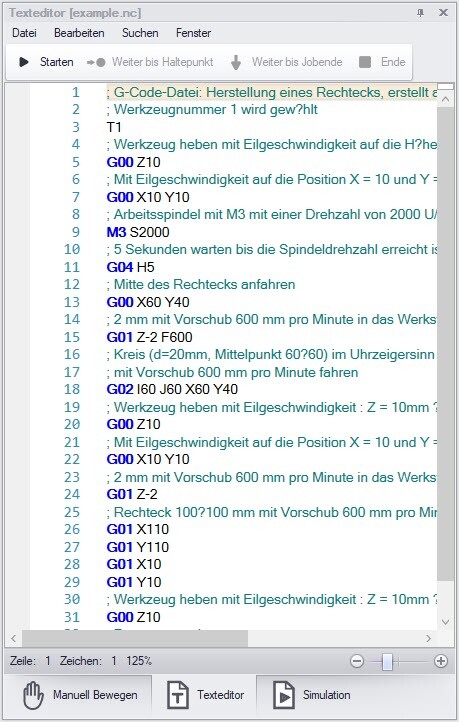
G-code programming is carried out in the cncGraF text editor. When changes are saved in the text editor, the G-code display is automatically updated in the 2D view window so that the G-code can be checked visually.
 TipcncGraF also has a 3D view window in which the G-code file can be viewed.
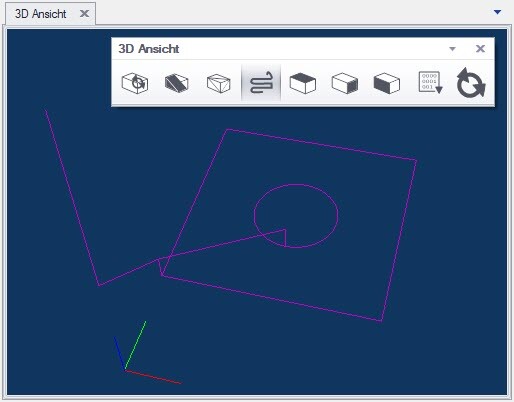
cncGraF supports standard G-code. To learn how to use G-code, we recommend our blog article „CNC programming: Learn G-code - Quick and easy„. Knowledge of G-code is an advantage for CNC programming. Our blog article offers practical support to learn this knowledge quickly.
Summary
This article shows that familiarising yourself with cncGraF as a free G-code simulator is quick and uncomplicated. cncGraF offers all the tools you need to get started with G-code programming. cncGraF is a useful tool for those who want to familiarise themselves with CNC programming.
Yours sincerely, Your BOENIGK-electronics Team